Tutorial
Window Peeper Video Not Working? Fixes for Upload, Credits and Results
Window Peeper video not working? Fix photo upload errors, a lost draft after sign-in or payment, slow or failed videos and downloads. Failed videos return credits.
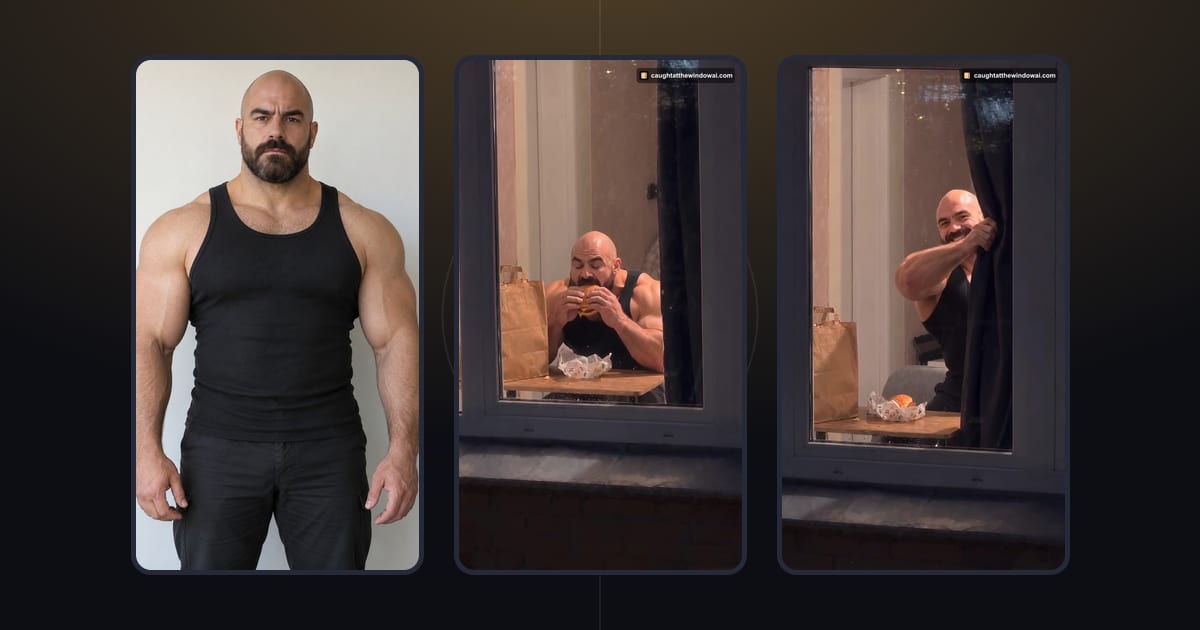
When a Window Peeper video is not working, the cause is usually one of four things: the photo does not pass the upload checks, the draft was not restored after signing in or paying, the generation is still running or has failed, or the finished video can no longer be played or downloaded. Each case shows its own message in the form or in My videos. If a generation fails or times out, the credits it used are returned automatically.
This guide covers the browser-based Window Peeper filter on this site. It only describes how this site works; it does not cover problems inside the CapCut app or with CapCut templates.
First, check which Window Peeper you are using
The trend has several routes. Many people first meet it as a CapCut template, where you choose a template and add your own media inside the app. This site is different: you upload one photo in your browser, and an AI generates a new video of that person in a prepared window scene. There is nothing to install and no template to find.
If you are using a CapCut template and it is not loading or exporting, that is a question for CapCut. If you are using the form on this site, the sections below follow the order in which things happen: upload, sign-in and payment, generation, then the finished video.
The photo will not upload
The form checks your photo in the browser before you sign in or pay, and tells you exactly what to change. These are the messages you can see and what they mean:
- "Only JPG, PNG, WebP and HEIC photos are supported." The file is another format, such as a PDF or a RAW camera file. Export it as JPG from your photo app.
- The file is too large. Photos up to 50 MB are accepted. Choose a smaller version or export a copy at a lower quality.
- "Choose a still photo instead of an animated image." Animated images are not accepted. Pick a single still photo.
- The photo is too small, or too tall and narrow, or too wide and short. Very small images and extreme crops are rejected. Choose a larger photo, or crop out extra background and upload again.
- "Choose a readable, still JPG, PNG, WebP or HEIC photo." The browser could not open the file. A damaged download or an unusual export often causes this. Save the photo again from your gallery and retry.
- "We could not prepare your photo." The upload did not finish. Check your connection and try again; your other settings are kept.

A photo that passes these checks can still be hard for the scene to read: a dark selfie, a face behind sunglasses or a group photo. That is not an upload error, but it is the most common reason for a result you do not like. The best photo for Window Peeper AI guide shows what works.
The photo disappeared after signing in or paying
When the form asks you to sign in or buy credits, it saves your unfinished draft in the browser tab first. After sign-in you return to the same page with the form open, and after checkout you return to the page that started the payment. The draft is restored automatically.
If that does not happen, look for one of these messages:
- "Could not save your draft. Allow site storage, then try again." Your browser is blocking site storage. Private browsing modes and strict privacy settings can do this. Allow storage for this site, or use a normal window, and try again.
- "Your photo could not be saved for your return." Keep the page open and try again before signing in or paying.
- "Your uploaded photo has expired." Uploaded photos are deleted 24 hours after the video finishes or fails, and an unused upload can also expire. Choose the photo again to start a new video.
- "Credits have been added. Your original draft changed or expired." The payment worked and the credits are in your balance. Review the form, select your photo again if needed, and generate.
Opening many new tabs does not bring a lost draft back. Go back to the tab where you started, or simply select the photo again; your credits stay in your account either way.
Payment went through but nothing started
After checkout, the site returns you to the page that started the payment. Check the form before doing anything else. If it says "Payment was not completed.", the payment did not finish, but your photo and settings are saved; you can try again from the same page. If the payment succeeded, the credits are in your balance and the form lets you continue.
Do not buy another pack just because the page looks unchanged. If the form says it could not check your balance, retry that first. Credits are one-time purchases that never expire, so nothing is lost while you check.
Start again with a checked photo
If you want to retry from scratch, use the form below. It is the same creator as on the Window Peeper filter page and it loads as you reach this section. Select the photo, check the preview, confirm permission and continue.
Upload your photo here
The form opens here. Credit packs are paid once; generation uses credits.
The video is taking too long
Generation usually takes about 4 minutes. While it runs, the status shows "Generating". You can close the page; the video keeps processing, and you can return to My videos in the same account to check it.
Do not press the create button again while a video is in progress. If the form says it could not confirm a submission, try again with the same settings: that checks the same video instead of starting a second one.
A video that has not finished within 30 minutes is marked as failed, and the charged credits are returned automatically. You then decide whether to try again.
The video failed
When a video fails, My videos shows "Generation failed", a reason and a note that the charged credits have been returned. The reasons you can see are:
- "Generation timed out." It did not finish in time. Try again; the credits were returned.
- "The service rejected the content." The safety checks did not accept the photo. Use a photo of yourself, or of an adult who gave you permission. Celebrities, public figures and minors are not accepted.
- "The generation service had an internal error." The problem was on the service side. Return to the form and try again later.
- "The generation service could not finish." The general case. Try again, or open a support ticket about this attempt.
A credit return puts the credits back in your balance. It is not the same as a cash refund, which is covered by the refund policy for unused credits within 7 days of payment.
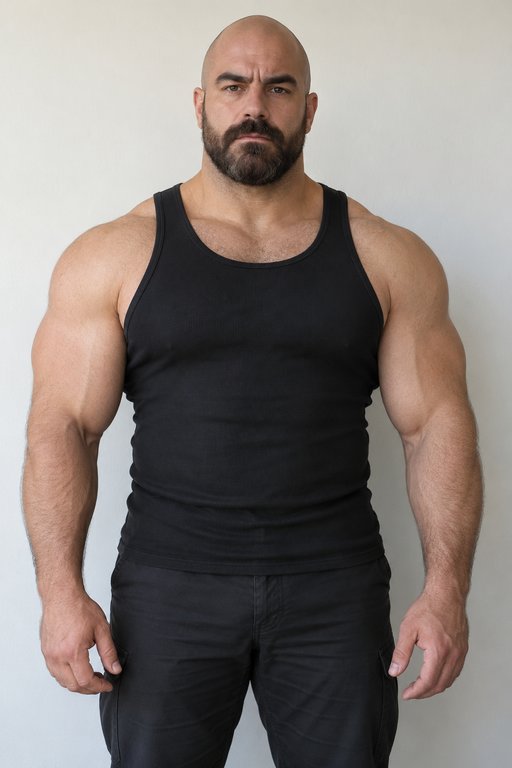 The photo
The video plays but does not look right
The scene, the burger and the curtain are the same in every video, and small details of movement can vary between takes. What changes is the person, and that depends on the photo. If the face looks different from you, the usual causes are a dark or blurry photo, a face turned away or covered, a heavy filter, or several people in the picture. Try a clearer photo.
A delivered video counts as used, including when you dislike the artistic result. Choosing a good photo before you generate is the best way to avoid spending credits on a take you will not post.
Skip the reading and make yours
I cannot play or download the video
- You see a short, watermarked preview. The full video has to be unlocked with credits before you can play it in full and download it. Unlock it before the preview expires.
- "The video couldn't play. Please reload." Reload the page. If you are on mobile data, try again on a stable connection.
- "This video's storage period has ended." Finished videos are kept for 30 days. After that, playback and download are no longer available. Make a new video if you need one.
- The download does not appear on your phone. Check your browser's downloads and your Files app. Save it to your gallery before posting.
Watch this generated example to see what a complete video looks like: about 15 seconds, vertical, with the scene's own soundtrack.
When to contact support
If none of the above explains what you see, open a support ticket from your account. Include the video or order details and the message you saw. Technical problems and refunds of unused credits follow the published policies. For the full flow from upload to download, read how to do the Window Peeper trend.
Each video uses 10 credits, and packs start at $8.90 with no subscription. When you are ready to try again, return to the Window Peeper filter or use the form above.
Questions
Why is my Window Peeper video not working?
Most problems come from the photo (an unsupported, animated or oversized file), a draft that could not be restored after sign-in or payment, or a generation that failed or timed out. The form and My videos show a message for each case with the next step.
Do I lose my credits if the video fails?
No. A confirmed failed generation, or one that does not finish within 30 minutes, returns the charged credits to your balance automatically. That is a credit return, not a cash refund; unused purchased credits can be refunded within 7 days of payment under the refund policy.
How long can I download my video?
A finished video stays available in My videos for 30 days. After that it can no longer be played or downloaded, so save your own copy as soon as it is ready.
Keep reading
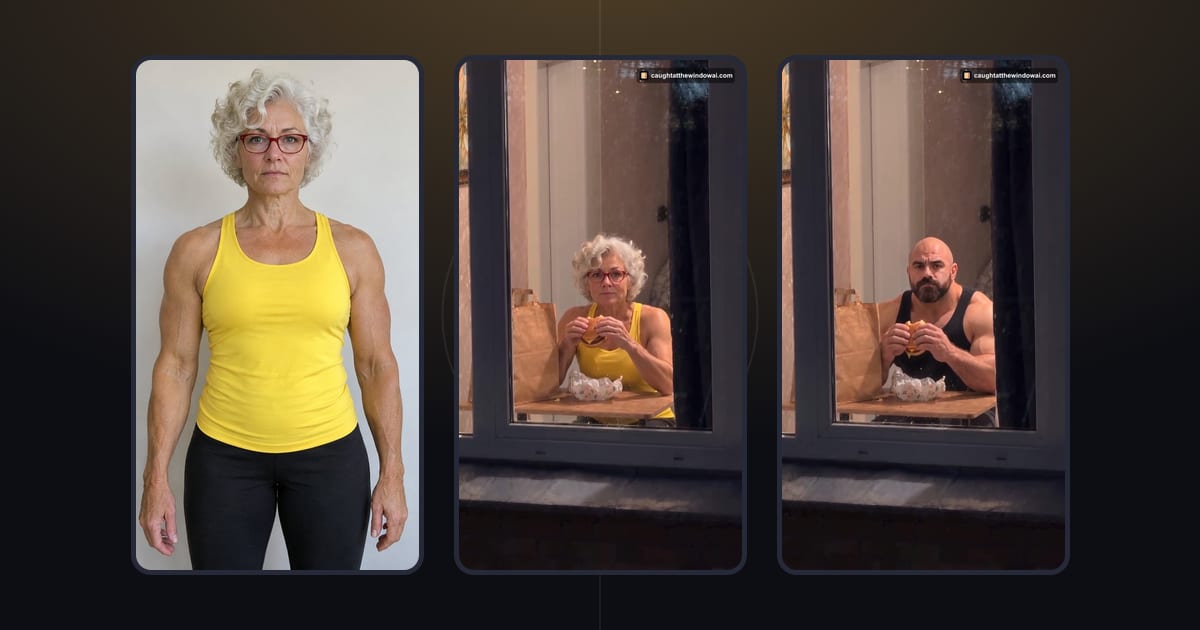 TutorialBest Photo for Window Peeper AI: What Works and What FailsThe best photo for Window Peeper AI shows one adult with a clear, well-lit face. See what works, what makes a photo hard to read and the upload limits.October 29, 2026 · →
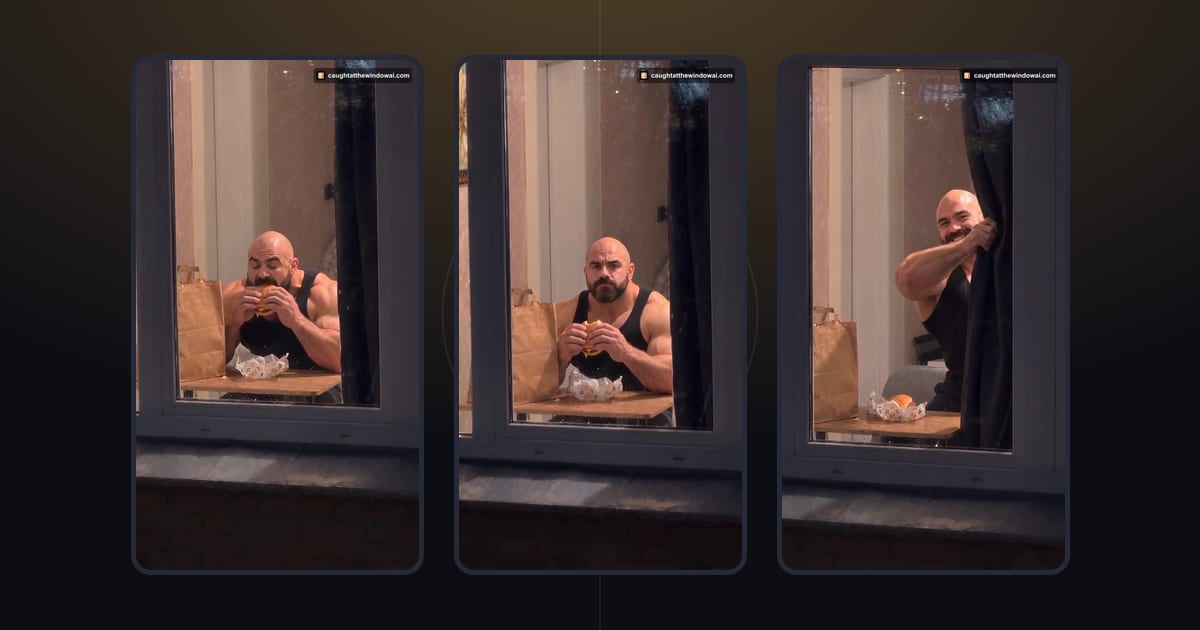 TutorialHow to Do the Window Peeper Trend From One PhotoMake your Window Peeper AI video with a clear photo. Follow the upload, credit and download steps in your browser, with no prompt to write.October 23, 2026 · →