Tutorial
How to Do the Window Peeper Trend From One Photo
Make your Window Peeper AI video with a clear photo. Follow the upload, credit and download steps in your browser, with no prompt to write.
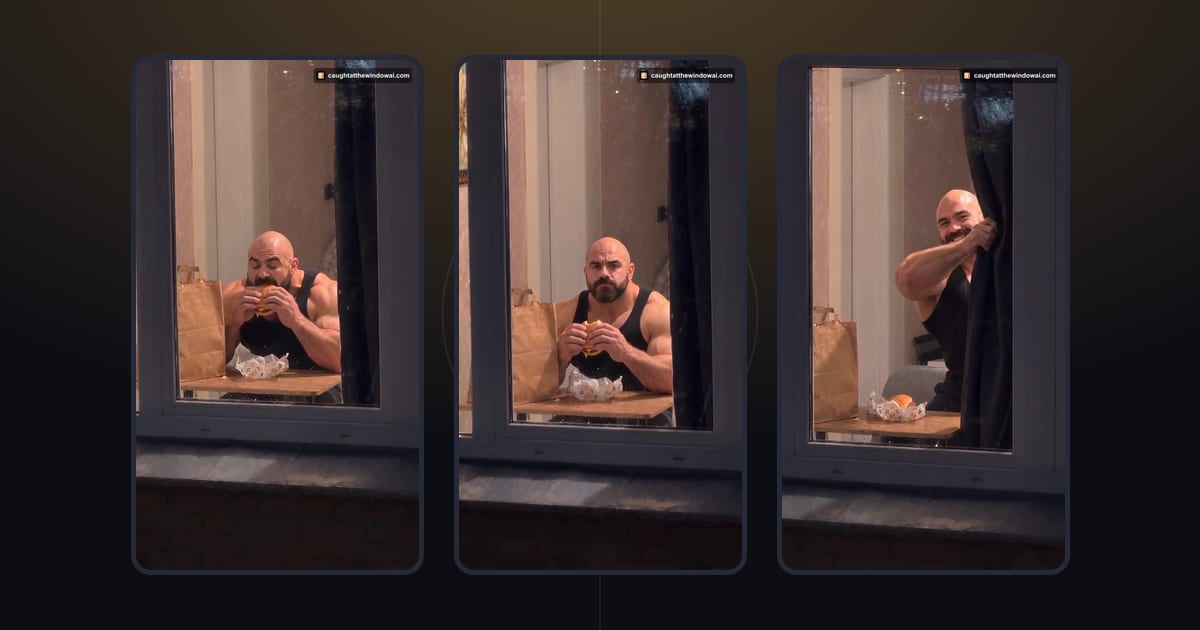
To do the Window Peeper trend, upload a clear photo of yourself, confirm permission and use credits to create an AI video with the prepared window scene. You can do that in your browser through the form in this guide, without finding a CapCut template or writing a prompt. The visual idea is a snack interrupted by eye contact and a closing curtain.
The Window Peeper AI page has the same creation flow if you prefer to start there. This tutorial keeps the steps next to the uploader, including what to check before paying and how to return to your photo after signing in.
First, choose the workflow you want
Searches for Window Peeper CapCut often lead to template tutorials. A template workflow and this site's photo workflow are different routes to a similar trend idea. Here, you supply a photo and use a prepared scene in the browser. The form is not a general video editor, and it does not ask you to design a new room, select a meal or write camera directions.
If you arrived looking for a filter, the Window Peeper filter guide explains this browser option. You can read the trend's origins separately. Neither the trend name nor a screenshot should be treated as proof of a particular output duration, soundtrack or rendering time; review the options presented by the current form.

Step 1: pick a photo that is easy to read
Choose a photo where your face is visible, in focus and reasonably well lit. A straightforward portrait is easier to inspect than a distant subject in a crowded scene. You should be able to identify the person immediately in the upload preview. Avoid a crop that cuts through the face or an object that covers the features you want the video to preserve.
Use your own photo, or a photo of an adult who has given permission for this use. The service does not accept celebrities, public figures or minors. If a friend agrees, make sure they understand that you are making an AI-generated entertainment video and where you intend to share it. Permission for an ordinary photo is not automatically permission for every new use.
The upload limit is 50 MB. If the browser cannot read a file, use the message beside the upload control to decide what to change. Re-exporting a photo from your photo app can help with a file that will not open. Do not keep submitting an unreadable preview in the hope that payment will fix the input.
Step 2: upload and check the preview here
Use the full form below to choose your photo. It loads as you approach this part of the article. After selecting a file, inspect the preview before continuing: is it the right image, is the face visible, and has the crop kept the important details? Read the authorization confirmation and select it only when it accurately describes your photo.
Upload your photo here
The form opens here. Credit packs are paid once; generation uses credits.

If you want more room around the form, open Window Peeper AI. Both entry points use the same creator. You do not need to upload a third-party trend video, paste a template identifier or supply the site's production prompt. Your photo is the input you choose for the prepared scene.
Keep the browser tab open while working. The creator stores a draft in your browser so it can recover the selected photo after sign-in or checkout. If it reports that draft storage is unavailable, follow that warning before leaving the page. A successful preview and no storage warning are useful checks before the next step.
Step 3: sign in and choose credits deliberately
When the form asks you to sign in, complete sign-in and return to this article. The returning form loads automatically and resumes the draft. Check the photo again before continuing, especially if you have been trying more than one image in different tabs. A saved draft is convenient, but the visible preview should still match the version you intend to create.
A video uses 10 credits. The entry pack costs $8.90 for 10 credits; the other packs contain 30 credits for $19.90 and 80 credits for $39.90. All prices are in USD. These are one-time purchases, with no subscription, no automatic renewal and no expiry on the credits.

Pick a pack for the attempts you want to make, rather than treating the larger pack as required. The pricing page lists the available quantities and purchase conditions. This flow does not include a free generation. Opening the guide or preparing a local photo preview does not mean you have bought credits.
Step 4: return from checkout and create
After a successful or canceled checkout, the site returns to the page that started it. If you started from this article's form, you should return here with the creator open. On a successful return, check your draft and the displayed status before taking another action. Do not repeatedly press the creation button while a request is already being processed.
Read the status shown in the form. Generation time can vary, and this guide does not promise a fixed number of minutes. If generation fails or times out, the credits are returned automatically. That return does not mean a finished result has been delivered; check the job's state before deciding whether to try again with the same photo.
The refund policy covers unused purchased credits within 7 days of payment. A delivered video counts as used. An automatic credit return for a failed job and a monetary refund for unused credits are different things, so use the policy that matches your situation.
Skip the reading and make yours
Step 5: review the whole scene before sharing
The joke follows a simple order: approach the lit window, reveal the snack, establish eye contact and close the curtain. The video below is an actual generated example made from a fictional adult photo. Watch the whole sequence to see how the expression and curtain ending work together, then review your own result before sharing.
When your result is ready, watch it through rather than judging only the first frame. Check the person, the visible action and the ending. If you want to add a caption, let the text set up your own joke: a late snack, a break between meetings or your appetite during a match. These are caption ideas; they do not add selectable scenes to the form.
Download the result you want to keep while it remains available. Videos are retained for 30 days, and uploaded photos are deleted 24 hours after completion or failure. Store your downloaded copy somewhere you can find it again before editing a caption or preparing a post.
If something does not look right
For an upload problem, begin with the file and its preview. A very small face, heavy obstruction or the wrong selected image is worth correcting before generation. For a sign-in return, confirm that you are back on the same article and that the draft loaded. A storage warning needs attention; opening many fresh tabs will not make an unavailable draft reappear.
For a payment question, check the status and your account before starting another purchase. For a generation question, use the displayed job status and any error message. These checks avoid mixing up three different issues: a local photo preview, purchased credits and the progress of a video request.
If you are interested in why the window action is structured this way, the Caught at the Window prompt guide explains general scene principles. You do not need those instructions to use the form. When ready, return to Window Peeper AI or continue with the uploader above.
Identify the finished post as AI-generated and use the platform's AI-content label where available. Choose audio you are allowed to use. Then let the final curtain do the work: a short personal caption is often all the setup this joke needs.
Questions
How do I do the Window Peeper trend from a photo?
Upload a clear photo of yourself or an authorized adult, review the preview and permission confirmation, sign in and create with credits. This guide's form uses the same prepared-scene workflow as the main tool.
Do I need CapCut or a written prompt?
No. This browser workflow uses your photo and a prepared scene. It does not require you to locate a CapCut template or enter a custom prompt.
How much does a Window Peeper video cost?
Each video uses 10 credits. Packs start at $8.90 and are one-time purchases with no subscription. Failed or timed-out generation returns credits automatically; unused-credit refunds follow the refund policy.
Keep reading
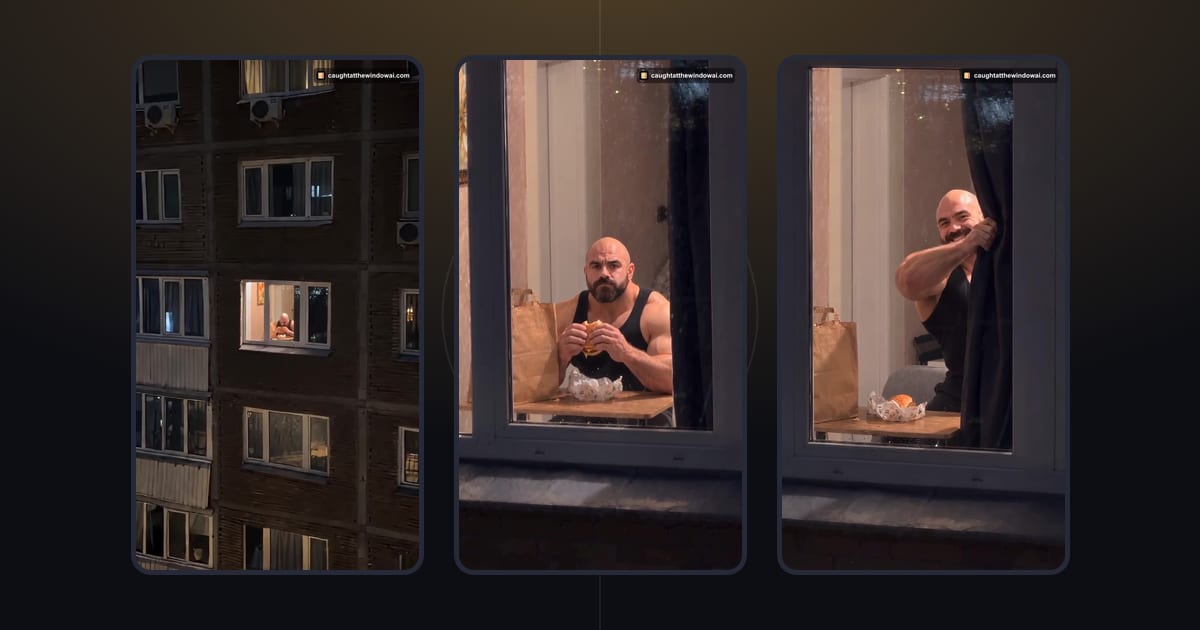 ExplainerWhat Is the Window Peeper Trend? How Caught at the Window StartedThe Window Peeper trend is the caught-mid-snack window joke. Follow its October 2026 timeline and learn what makes the curtain ending work.October 23, 2026 · →
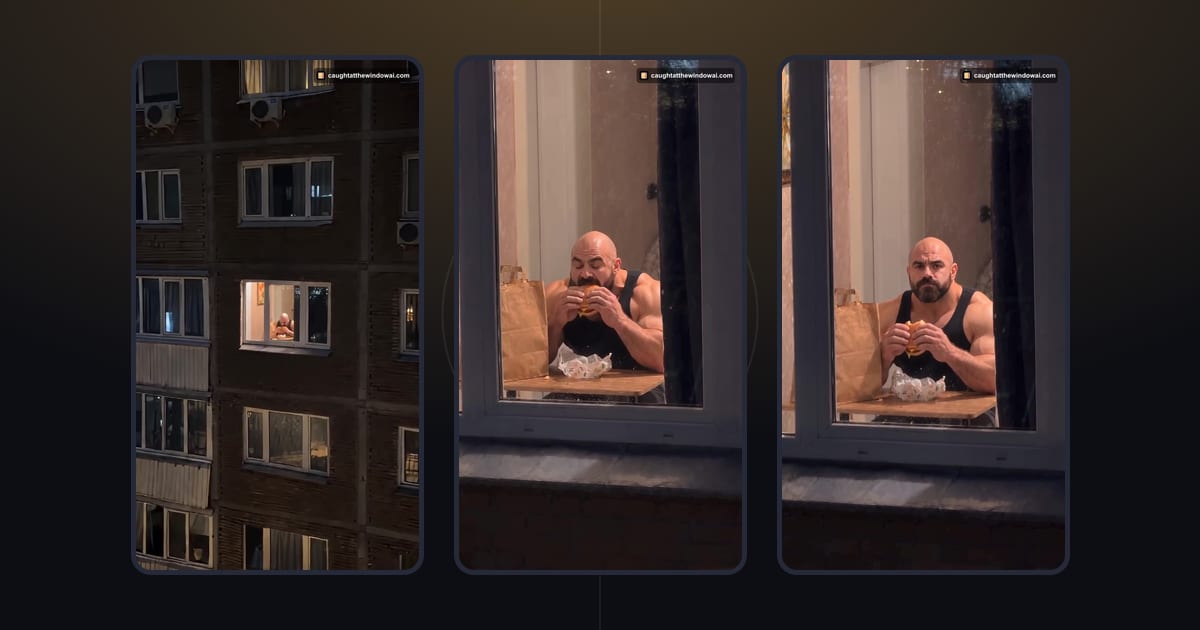 TutorialCaught at the Window AI Prompt: What the Scene NeedsUnderstand the Caught at the Window prompt through four story beats: the approach, the snack, the look and the curtain. Or start with one photo.October 29, 2026 · →